
Log Window
The Log Window in SmartGit (not to be confused with the Git Log tool) is one of the Main Windows of SmartGit, and allows Git power-users to have complete control over a repository.
Why use the Log Window?
The Log Window is aimed at experienced Git users who which to gain full understanding of the commit history of a repository, and ease the ability to allow history to be tidied and re-written, and has a focus on Git commands such as Rebase, and Interactive Rebase features such as squashing, modifying, reordering and removing commits within a repository.
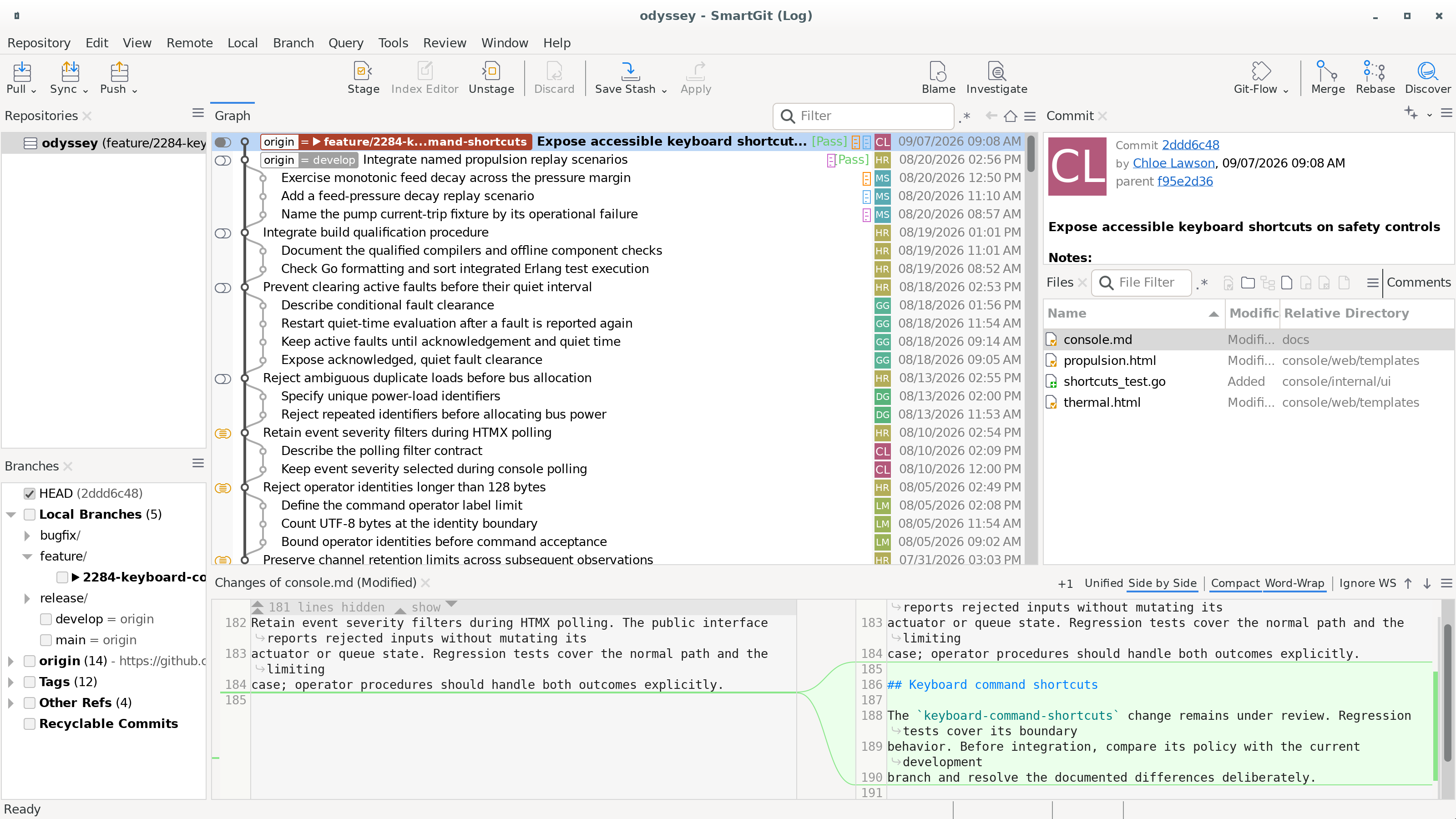
Elements of the Log Window
The Log Window contains the following views:
- The Repositories View, showing all repositories added to SmartGit, and allowing you to switch between open repositories.
- The Branches View, allowing you to toggle which branches are to be included int the Graph View, and other Branch related features.
- The Graph View, providing a graphical visualization of the commit history in the selected branches. For a compact display, see Graph compaction.
- The Commit View allowing commits to be viewed, and new commits to be created.
- The Files View, showing which files have changed in the selected commit. The standard filtering widgets can be applied to control which files are listed.
-
The Changes View, showing the changes in the file selected in the Files View for the selected commit in the Graph View, or the difference in the file between any 2 commits, if exactly 2 commits are selected in the Graph View.
- The Commit View allowing Commits to be viewed, and new Commits to be created.
- The Files View, showing which files have changed in the selected commit. The standard filtering widgets can be applied to control which files are listed.
- The Changes View, showing the changes in the file selected in the Files View for the selected commit in the Graph View, or the difference in the file between any 2 commits, if exactly 2 commits are selected in the Graph View.
Use Separate Working Tree and Index in the Files View hamburger menu to split the list when there are both staged and unstaged changes.
Tip
- You can view commits eligible for garbage collection by selecting Recyclable Commits in the Branches view of the Log Window.
- After connecting a hosting provider, the Log Window also shows pull requests. These appear below the local branch, or the remote branch if there is no local branch, in the Branches View.
- The Files View also shows comments from the connected hosting provider. See Review Comments for details.