
Graph View
The Graph displays the log graph (“history”) starting from the selected Branches anchors.
Branches, tags, and other refs will appear at the “appropriate” commits.
In the case of File (or Subtree) Logs or filtered Logs (see Filter input field below), each ref will be mapped to the most recent commit in the Graph that is still part of the ref’s history.
For File (or Subtree) Logs, the content of the file (or subtree) at the mapped ref commit will be identical to the content of the actual commit to which the ref points.
For filtered Logs, when there is no relation between the mapped commit and the actual commit, you can still see which of your filtered commits are part of each ref’s history.
Mapped refs that are not located exactly at the commit to which they are attached will be denoted by ~.
Variants of the Graph View
- The Graph View is the primary focus of the Log Window (Main Window). Query | Log is a shortcut to the Graph View in the Log Window.
- The Graph View in the Standard Window is similar, but since there is no branch selector, you can normally visualize the current branch or all branches when the ‘My History’ tab is open. Revealing a commit can temporarily extend this graph.
- The Journal View of the Working Tree Window shows only the commit history of the current HEAD commit.
Display Options
The Graph can be customized in various ways using the Options hamburger icon above the Graph View. Please note that not all options are available in every view.
- Columns - Adjust the columns shown in the Graph View. You can toggle the Commit SHA ID, the date the commit was created, the committer/author and the Overlap Column
- Avatar - Displays either the author or committer, depending on the Columns selection. Options include avatar only, initials, full name, and name with email.
- Show Auxiliary Branch (Working Tree Journal View only) - Allows selection of one additional branch to view in the Journal graph.
- Show More Commits (Working Tree Journal View only) - Extends the number of commits shown at the bottom of the Journal graph. This is temporary; when the view is refreshed the commits shown will revert to the original number.
- Show Common Commits (Working Tree Journal View only) - Hides commits not common to both the Working Tree and the selected Auxiliary branch. Use this option only when an Auxiliary branch has been selected.
- Show Branch Labels (Working Tree Journal View only) - Toggles visibility of branch labels.
- Show only Selected Branches and Tags (Log Window Graph View only) - Hides branch labels not selected in the Branches View.
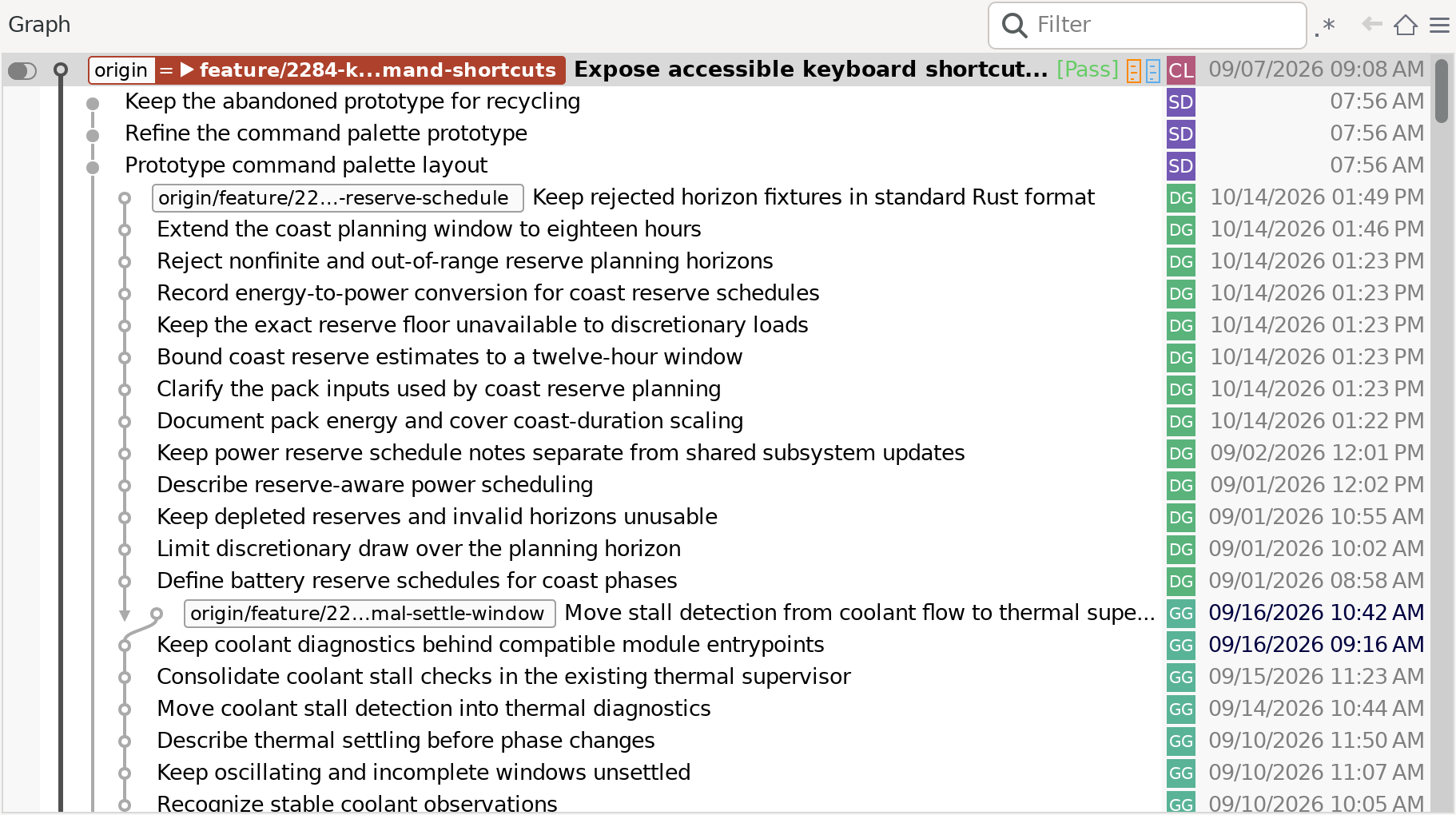
Graph View in the Log Window, with the Recyclable Commits option enabled
Graph filter
Using the Filter field above the Graph, you can restrict displayed commits to those matching a specific filter criterion. When the Filter field is modified, SmartGit will restart the search from the selected Branches and return matching commits incrementally. The search is performed directly in the repository, so eventually, SmartGit will find all matching commits in the entire repository.
In the Standard Window, select one or more commits in the filtered Graph, then click Reveal in the filter banner. This clears the filter and keeps the selected commits visible in the unfiltered graph.
Graph coloring modes
In the Log Window, open the Graph’s Options menu to choose a coloring mode:
- Default Coloring uses ref names to color first-parent histories and is the default.
- Branch Coloring emphasizes the coloring anchor’s first-parent history and fades the rest.
- Mergeable Coloring emphasizes commits outside the coloring anchor’s history.
- Varying Coloring uses alternating colors for the graph lines.
For Branch Coloring and Mergeable Coloring, HEAD is the initial coloring anchor. After choosing either mode, select one or more commits and choose View | Set Anchor Commit to use them as coloring anchors.
SmartGit remembers the last Default Coloring or Varying Coloring choice for new Log Windows. Branch Coloring and Mergeable Coloring apply temporarily to the current window.
Graph compaction
In the Log Window and Standard Window, graph compaction hides intermediate commits in linear sequences. Dashed connections mark collapsed sequences.
Click the plus node at either end, or select it and press Right, to reveal the hidden commits.
In an unfiltered graph, click a graph node inside an expanded sequence to collapse it again.
Alternatively, select a node in the sequence or at either end and press Left.
My History graph scope
In the Standard Window, the selector above the Graph offers these choices for My History:
- All my branches shows the normal graph and is the default.
- Compacted my branches collapses linear sequences of commits.
- Only current branch (HEAD) shows the current branch’s history.
Note
By default, compaction is limited to the first 700 graph nodes, while the last 300 remain visible.
Use the low-level property standard.graph.history.compactionRange to change the compaction range.
Set it to 0 to disable compaction.
Log graph compaction
In the Log Window, the graph’s Options menu offers these modes:
- Full Graph keeps linear sequences expanded and is the default.
- First-Parent Compaction collapses linear sequences of commits. Commits with branch or tag labels remain visible.
- Follow First Parent Only follows only the first parent at each merge.
SmartGit remembers the selected mode. Applying a graph filter temporarily suspends First-Parent Compaction.
Navigating Between Connected Commits
In the Log Window and Standard Window, use Select Parent Commit or Select Child Commit to follow the selected commit’s graph connections. If there are several candidates, the Select Commit dialog previews its selected candidate in the graph. Click Select to keep the choice, or Cancel to return to the originally selected commit.
Revealing commits outside the current graph
In the Standard Window, following a commit link or using Select Parent Commit or Select Child Commit can reveal a commit outside the currently displayed history. Clicking a graph arrow to a commit outside the loaded history also reveals it. SmartGit clears any active graph text filter before selecting the requested commit.
In My History or All Branches + Tags, SmartGit can temporarily include the requested commits in addition to the usual graph roots. These commits stay included across refreshes and remain visible in a compacted graph. To return to the usual graph scope, change the graph root option or text filter, or select a history or ref entry at a different commit.
Sharing commits with SmartLinks
SmartLinks let another SmartGit user open a shared commit in their local repository.
Creating SmartLinks
In the Graph of the Log Window or Standard Window, select commits and choose Edit | Copy SmartLink or Copy SmartLink from the context menu.
Your repository must have an origin remote.
Copying several commits produces one link per line.
You can also choose Copy SmartLink from a commit ID’s context menu in commit details.
In SmartLink Privacy, use Include repository URL and Include commit message to choose which optional information the link contains. Both options are off by default. Review Link Preview, then click Copy. You can change these choices later in Privacy preferences.
Opening SmartLinks
You can open a SmartLink from your browser or from the clipboard.
To open a single SmartLink from the clipboard, press Ctrl+V (Command+V on macOS) in a Standard Window or Log Window.
This shortcut opens the link even when a text field has focus.
SmartGit looks for matching repositories among those it knows, preferring open repositories and then favorites. If several equally preferred repositories match, choose a Repository in the Open SmartLink dialog. If no repository matches, a link containing the repository URL offers Clone. A link without that URL requires the repository to be cloned and added to SmartGit first.
If the commit is missing locally, SmartGit fetches from the matching remote. Push new commits before sharing them with users who will need to fetch them.
Note
Generated links identify the origin remote’s push URL when configured, otherwise its fetch URL.
Set smartlink.url to the web URL prefix of your custom redirect endpoint.
SmartGit uses this prefix when creating and recognizing SmartLinks; the default is https://www.smartgit.dev/open/.
The endpoint must be reachable by recipients and redirect to SmartGit’s smartgit://open/ URL scheme.
Hover Feedback
In the Log Window and Standard Window, hovering over a commit highlights its first-parent history. Hovering over a branch or tag label highlights its related history. A fading outline around a commit’s message serves as a drag hint.
Note
All three low-level properties below default to true.
- Set
log.graph.hover.enlargeDottofalseto prevent the extra enlargement of a commit dot on hover. - Set
log.graph.hover.lineThicknesstofalseto prevent hover from making commit connection lines thicker. - Set
log.graph.hover.messagetofalseto hide the fading drag hint around a commit message on hover.
Icons used in the Graph View
The icons in the Graph View represent the following:
 - Position of the current Working Tree in the commit history.
The icon color indicates the Working Tree status – e.g., green if the Working Tree is clean (no changes since the last commit), red if there are changes or merge conflicts.
 - Represents each commit shown in the Graph.
 - Click to reveal collapsed commits, typically from a second parent in a merge commit.
 - Indicates a new branch created from the node (i.e., the node is a parent of two or more separate commits).
 - Indicates that two or more branches have been merged.
The converging node is the merge commit.
 - Indicates that the branch is equal to the tracked upstream branch on the remote (both branches are at the same commit).
 - Indicates that the branch has commits ahead (+) or behind (-) the tracked upstream branch on the remote.
 - Indicates the position of the tracked upstream branch when the current branch has commits ahead or behind.
Icons for both the current and tracked branches appear as Broken Puzzle Pieces.
 - Shows the position of the HEAD commit in the graph.
Use
graph.headarrowin a theme patch to choose a different color. - Indicates a signed commit.
For AI note icons in the Standard Window and repository Log Window, see AI Note Status.
The Branch Label consists of:
- Remote name (if applicable)
- Branch name
- Ahead/behind indicators
Note
- You can change the tracked upstream branch in the Branches View. This affects how the commit ahead/behind Puzzle Piece icons and indicators appear in the Branch Label.
- Commit ahead/behind indicators may vary slightly across different Graph View variations.