
Branches View
The Branches view shows local and remote branches, tags, and other refs from your repository and offers operations on these refs. Remotes will also be displayed and used to group the remote branches.
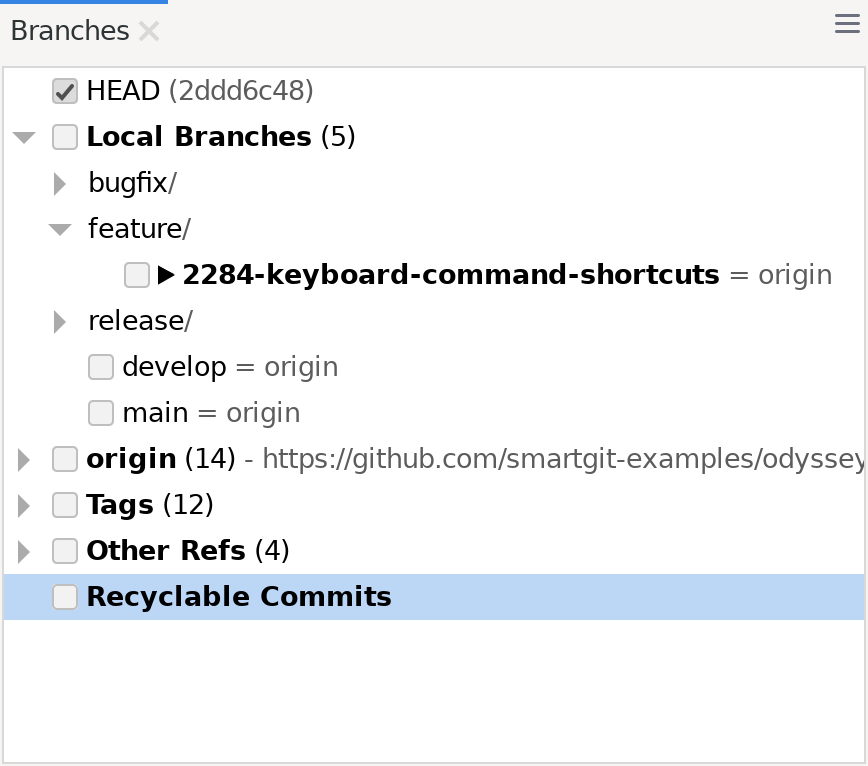
The current branch is shown in bold text next to a solid filled triangle (>).
Any other tag or branch that points to the same commit as HEAD (the current branch) is shown with an unfilled triangle (>).
Branches below a remote displayed in a lighter color indicate branches that are tracked by local branches (i.e. are already locally available).
Behind a tracked branch you can find symbols to indicate the tracking state.
- ’=’ indicates that the tracking branch is equal to its tracked branch.
- ’>’ indicates “outgoing” commits.
- ’<’ indicates “incoming” commits.
In the Log and Working Tree windows, select branches or tags and choose Copy SmartLink from the context menu. Each link records a fixed commit, even if the branch or tag later moves.
Additional Log Window Features
These features are only available in the Branches View of the Log Window.
- The checkboxes in front of refs (e.g. branches or commits on local or remote repositories) are used to select which branches are shown in the Graph.
- The used color inside the checkbox is the color used in the Graph for the ref symbol.
- Clicking a checkbox of a category (e.g. “Features” or “<remote>”) selects/unselects all refs of this category.
- If “Recyclable Commits” is selected, all commits in the local repository which are not reachable by refs are shown in the Graph. e.g., this can be useful to access a previous commit after amending a commit, or after a ref has been deleted. Note that unreachable commits are eventually garbage collected (permanently deleted) after the configured retention period (default 90 days).
Upstream Tracked Branch
Git allows a branch to track an upstream branch on a remote. The tracked branch will be used as the default reference point for any fetch, or push activity to/from the remote. Additionally, the Graph View will display additional information, such as the current local branch’s relative number of commits ahead/behind the tracked branch.
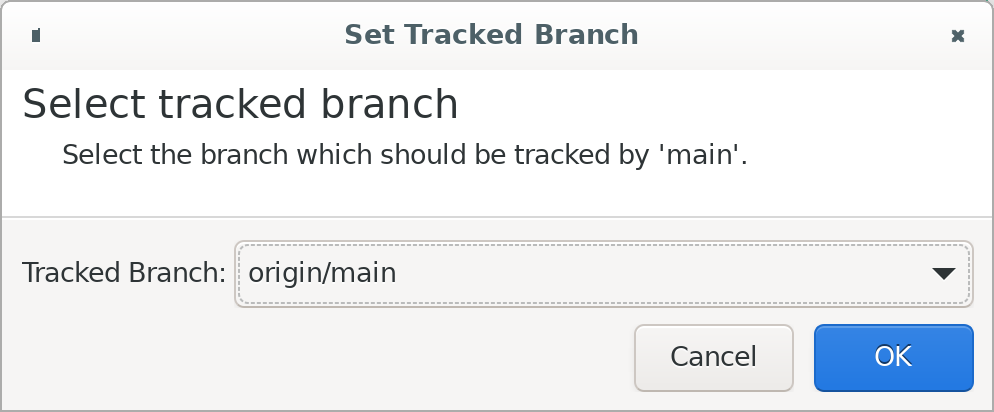
When a remote branch is checked out to a local repository branch, Git will automatically set the remote branch as the tracked upstream branch for the local branch. However, the tracked upstream branch can be changed by right-clicking on the local branch in the Branches View (of the Log window or Working Tree window) or the My History view (of the Standard window) and selecting Set Tracked Branch.
Choose Stop Tracking to remove the upstream association.
Note
You may need to refresh the remote refs to get the latest status of the tracked branch, e.g. by using the Fetch or Pull commands.
Tag Messages
In the Log Window, hover over an annotated tag in the Branches View to read its tag message. This also works in All Branches + Tags in the Standard Window.
In the Log Window or Working Tree Window, select an annotated tag in the Branches View and choose Show Tag Details from its context menu. In the Standard Window, use the tag’s context menu in All Branches + Tags. The Tag Details dialog shows the tag name, author, and full message.
Note
Tooltips show up to 1,024 characters of the tag message by default. Line breaks and tabs appear as spaces.
Tag-Grouping
The Tags part of the Branches view will be grouped according to a tag-grouping configuration.
This configuration is stored in your repository’s .git/config and can be edited in Repository | Settings, under the Tag-Grouping section.
To disable this grouping feature for the current repository, set both Pattern fields empty.