
User Interface Preferences
User Interface
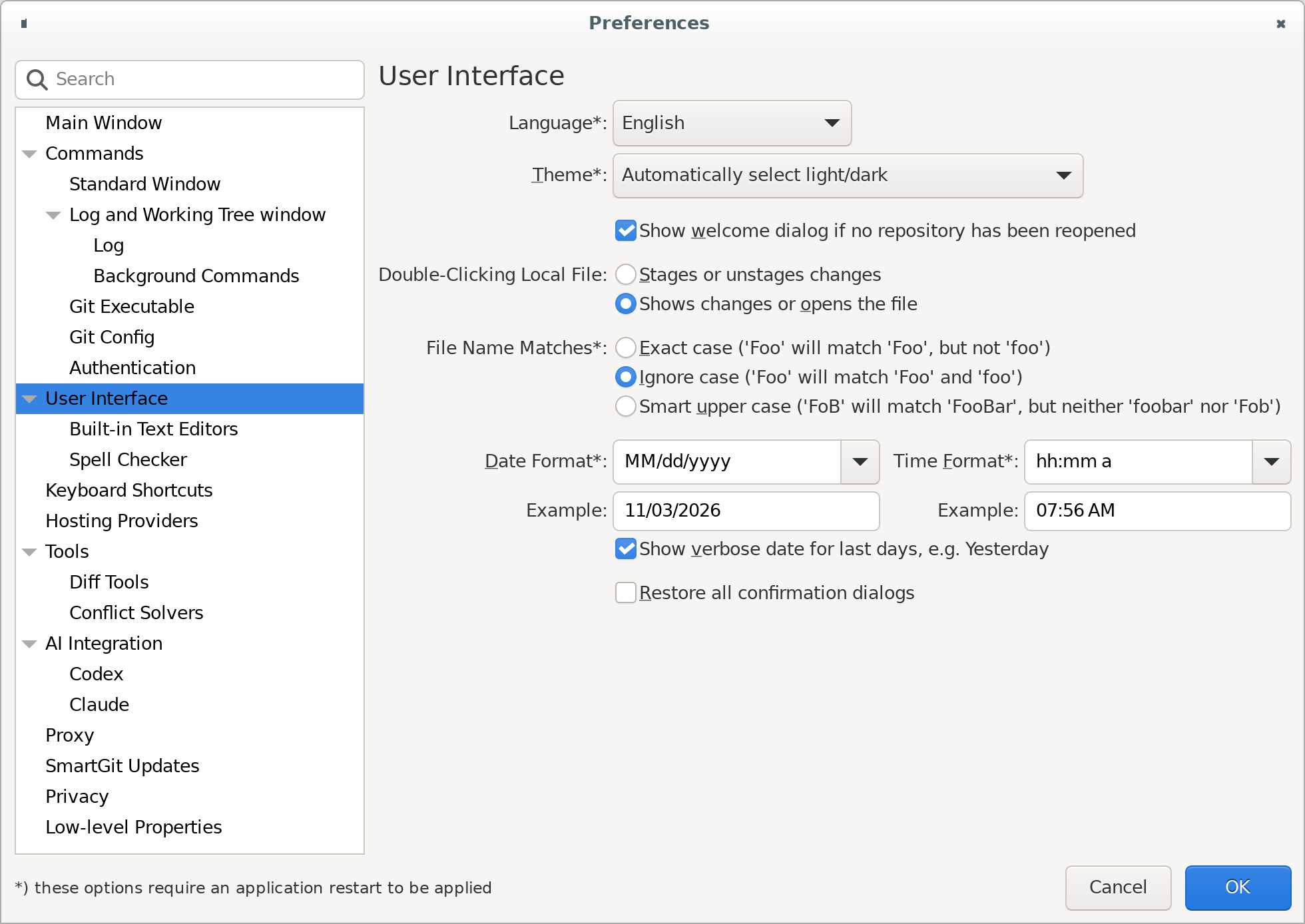
The User Interface settings allow configuration of all visual elements in SmartGit. After making changes to preferences, select OK to confirm and apply changes.
Note
After changing global features such as language or the theme, you will need to restart SmartGit in order for the new setting to take effect.
Language
This option allows the language on the SmartGit UI to be changed.
Theme Selection
Changing the theme will affect the visual appearance of SmartGit. This includes the text fonts, colors, and background displayed in SmartGit.
SmartGit will automatically select a default light or dark theme based on your current operating system preference, for instance, if you are using Windows in Dark Mode, then SmartGit will default to using its Dark Mode theme.
However, you can override the operating system preference, e.g., Dark Mode is available even if when your OS theme preference is different. Because our application has no full control over all parts of the GUI (some parts are drawn by the system), the “Automatically select light/dark” mode is recommended.
Once a theme has been selected, it is also possible to override individual theme attributes using the Built-in Text Editors.
Tip
It is possible to provide custom .theme files, in addition to the standard Light and Dark mode themes.
Refer to Theme Customization for details.
Startup Window
This option allows selection of the initial window view when SmartGit starts up. Refer to Main Windows Documentation for further details.
On Startup
The On Startup option determines which windows SmartGit will open automatically on startup. Enable Reopen the last used repositories on startup to remember the open repository tabs and reopen them next time. You can also choose whether each repository opens in its last-used window view.
Double-Clicking Local File
This setting controls what happens when a file is double-clicked, with the choice of either toggling the ‘staging’ status of the file, or opening the file.
File Name Matches
This setting controls whether SmartGit should behave in a case-sensitive, insensitive, or ‘Smart’ manner.
Date and Time Format
The date and time format options control the display of all dates and times in SmartGit. An example of how the chosen format will appear is displayed underneath the options.
Restore all Confirmation Dialogs
Ticking this option will restore the original confirmation dialogs, and SmartGit will again prompt you for confirmation for important actions.
Built-in Text Editors
Fonts and Colors
SmartGit supports syntax highlighting for a large number of popular coding languages. The Fonts and Colors tab allows customization of the display of files containing code across SmartGit.
For each highlighting class or context, the foreground font family, size, and color, as well as background color, can be customized.
Font Family
This selects the font used to display code. The choice of available fonts may vary, depending on the fonts installed on your operating system.
Show only fixed-width fonts
It is recommended that you restrict your choice of font to fixed-width fonts, as this will ensure that code alignment is preserved. Ticking this option will remove any fonts which are not fixed-width from the available font selection.
Font Size
You can input a numeric font point-size to control the size of the font. Values between 8 and 12 are recommended, depending on the resolution of your screen.
Foreground and Background Color Selection
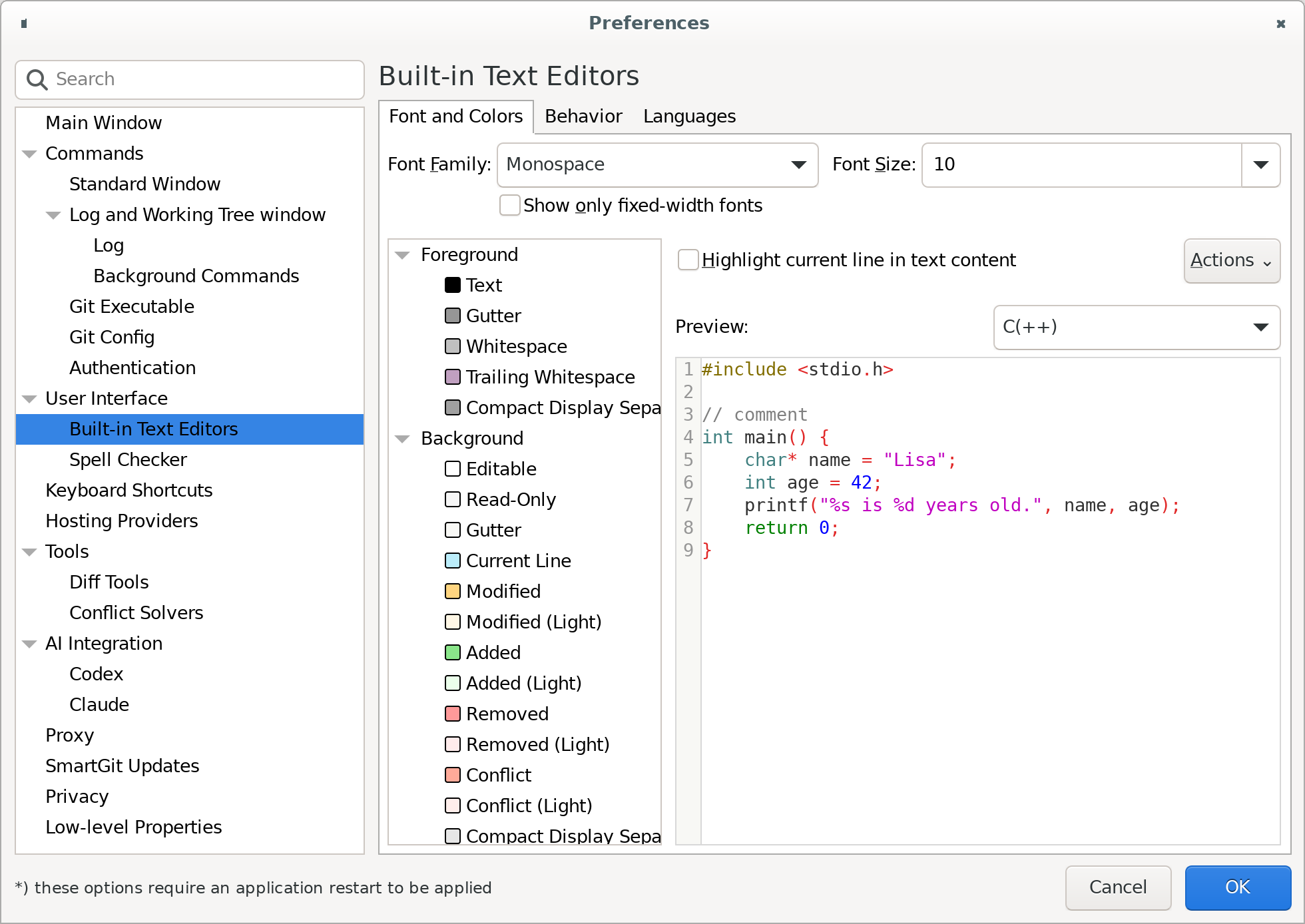
Click on a visual text element with the right mouse button to configure the color used for that element. If you are not satisfied with the color setting, you can choose Reset to default to return the element to the default theme value.
Open Actions and choose Import… to load colors from a .yml file or Export… to save the current colors.
Import replaces the color entries defined in the file and keeps the current values for missing colors.
The file also sets Highlight current line in text content, which is cleared if the option is absent.
Spell Checker
SmartGit makes use of MySpell dictionary (.dic) files to track valid words and phrases.
You can provide multiple dictionary files, by providing each with a unique name.
Related Low-Level Properties
beep.enable
Set beep.enable to false to suppress SmartGit’s comparison and navigation beeps.
The default is true.
Note
Native controls and some errors can still produce beeps.
chooserButtons.useTextButton
Set chooserButtons.useTextButton to true to replace chooser icons with keyboard-focusable text buttons.
The default is false.
Reopen the dialog to apply the change.