
Built-In Text Editors
Use Preferences -> User Interface -> Built-in Text Editors to customize the built-in editors.
Fonts and Colors
SmartGit supports syntax highlighting for a large number of popular coding languages. The Font and Colors tab customizes text editors and comparisons throughout SmartGit.
The font family and size are shared across the built-in text editors. Colors can be customized separately for text elements and syntax categories.
Font Family
Font Family selects the font used to display code. The choice of available fonts may vary, depending on the fonts installed on your operating system.
Show only fixed-width fonts
It is recommended that you restrict your choice of font to fixed-width fonts, as this will ensure that code alignment is preserved. Select Show only fixed-width fonts to limit the font list to monospaced fonts.
Font Size
Choose a Font Size from the list or enter a whole-number point size from 6 to 40. Values between 8 and 12 are recommended, depending on the resolution of your screen.
Foreground and Background Color Selection
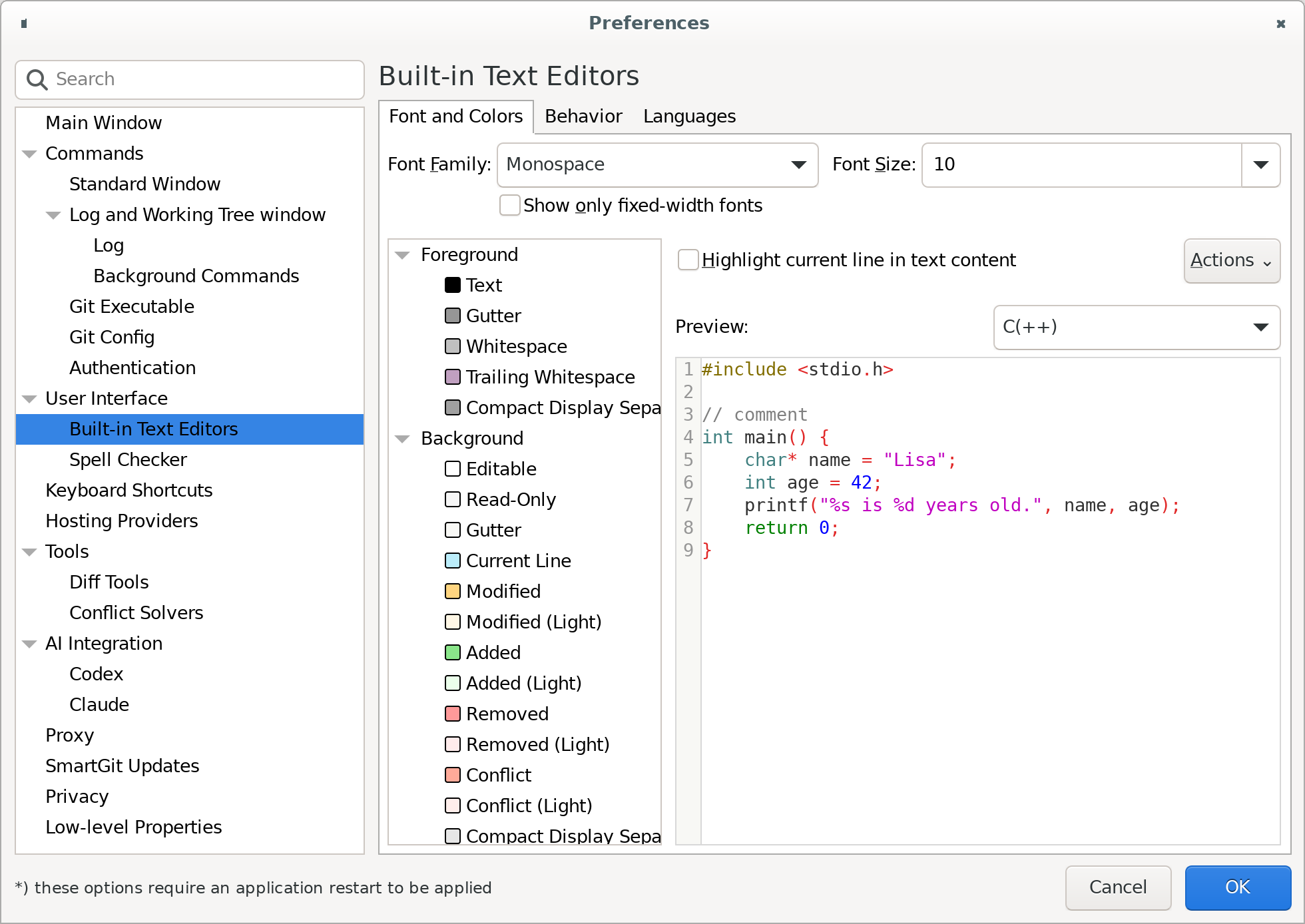
The color tree has three categories:
- Foreground includes text, gutters, and whitespace colors.
- Background includes editable and read-only text, change types, and review comments.
- Syntax contains the colors for syntax-highlighting categories.
Select a color and choose Select… from its context menu, or double-click it, to change it. Select two colors and choose Swap to exchange them. Use Reset to Default to restore selected colors. Clicking a syntax element in the preview selects its color in the tree.
Highlight current line in text content adds a background highlight to the caret’s line. Light and dark themes have separate color settings.
Open Actions and choose Import… to load colors from a .yml file or Export… to save the current colors.
Import replaces the color entries defined in the file and keeps the current values for missing colors.
The file also sets Highlight current line in text content, which is cleared if the option is absent.
Choose Actions -> Reset All to Defaults to restore the current theme’s colors and current-line highlighting.
Behavior
The Behavior tab controls editing and navigation:
- Home and end: operate on line, not the document moves to line boundaries with Home and End.
- Begin of line: jump to first non-whitespace character uses the start of the text when moving to the beginning of a line.
- Left and right cursor moves: limit to current line stops horizontal cursor movement at line boundaries.
- Autoindent new lines copies indentation when you insert a newline.
- Use indentation from previous non-empty line skips empty lines when choosing indentation.
- Trim whitespace removes whitespace around the caret when inserting an autoindented newline.
- Tab enters and Backspace deletes multiple leading spaces uses spaces for indentation at tab stops.
- Focus next change after accepting change (Take Left/Take Right) moves to the next change after you accept one.
Use indentation from previous non-empty line and Trim whitespace are available when Autoindent new lines is enabled.
Languages
The Languages tab assigns file-name patterns to syntax-highlighting languages.
Select a language and choose Edit…, or double-click it, to change its File Pattern.
Separate multiple patterns with commas.
Use ? for one arbitrary character or * for any number of characters.
Example
Add *.custom to a language’s existing patterns to use that language’s syntax highlighting for files with the .custom extension.
Modified patterns appear in bold. Choose Reset to Default from the context menu to restore the selected languages’ original patterns.