
Conflict Solvers
SmartGit uses its built-in Conflict Solver by default when you invoke Query | Conflict Solver. You can select an external three-way merge tool for particular file types.
Configuring conflict solvers
Use Add… or Copy… to create an entry. Use Edit… to change an entry or Remove to remove entries. Move Up and Move Down set their priority; you can also drag entries. SmartGit uses the first matching entry, falling back to the built-in solver for text files when none matches.
In the entry dialog, set File Pattern to comma-separated patterns.
Use ? for one character or * for any number of characters.
Choose Built-in Conflict Solver or External Conflict Solver.
For an external solver, select its executable in Command and enter its Arguments.
The Variables menu inserts supported variables.
External solver arguments
An External Conflict Solver requires ${leftFile}, ${rightFile}, and ${mergedFile} in its arguments.
The following variables are available:
${mergedFile}represents the resulting conflicting file, as-is in the working tree${leftFile}represents Git’s “ours” version of the file (:2)${rightFile}represents Git’s “theirs” version of the file (:3)${baseFile}represents Git’s “common” version of the file (:1)${leftTitle},${rightTitle}, and${mergedTitle}provide titles for the corresponding files.${encoding}provides the result file’s text encoding.
(Git file stage version in parenthesis)
For details on how Git manages merge conflicts, and the meaning of ours, theirs, common and base files, refer to the Git manual.
Marking conflicts resolved
Show also the resolve dialog for external conflict solvers offers Mark Resolved after launching an external solver. Use Mark Resolved after saving the resolved result to stage the file. If you disable the option, mark the file as resolved separately in SmartGit or in the external tool.
SmartGit normally waits for the external solver process to finish. If the solver’s launcher returns before editing is complete, use its wait option.
Note
To launch a tool without waiting on Windows, you can use the bin\open.exe helper:
- Command:
C:\Program Files\SmartGit\bin\open.exe - Arguments:
--no-wait "C:\Program Files\MyCompare\mycompare.exe" ${leftFile} ${rightFile} ${mergedFile}
Replace MyCompare\mycompare.exe with the path to your conflict solver.
Example: VSCode
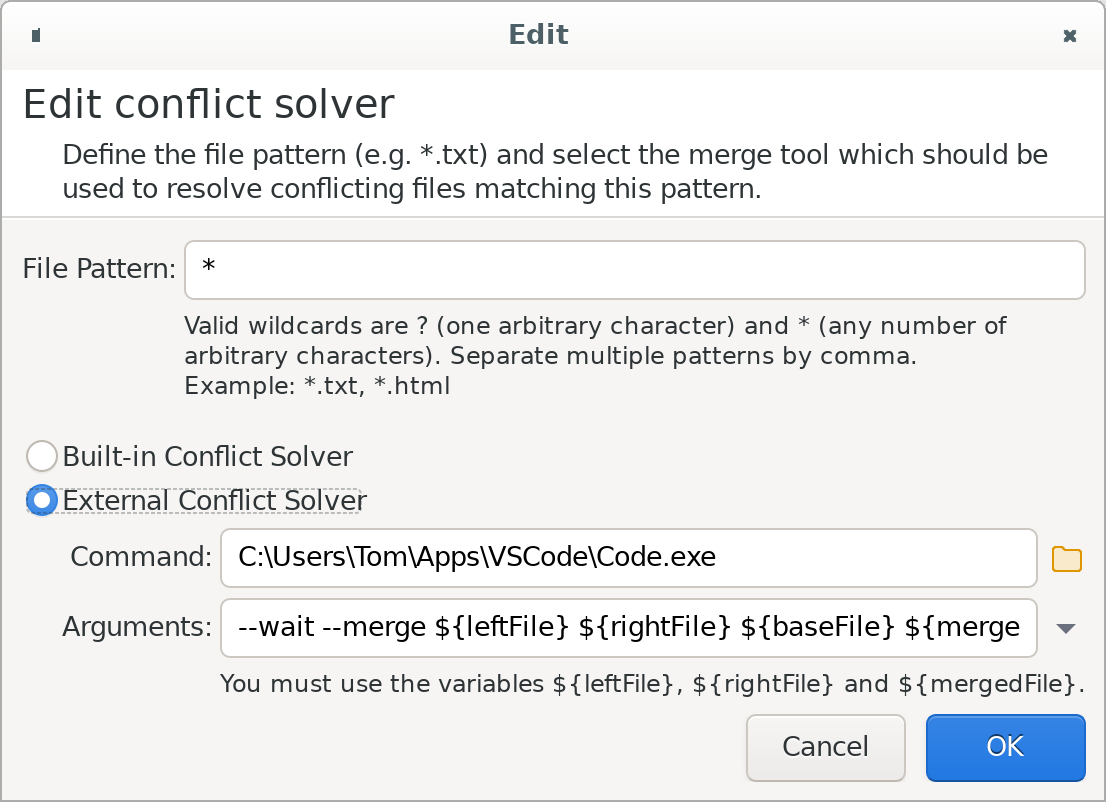
To configure VSCode 1.70 or higher as conflict solver, use --wait --merge ${leftFile} ${rightFile} ${baseFile} ${mergedFile} as Arguments.
Example: Unity Smart Merge Tool
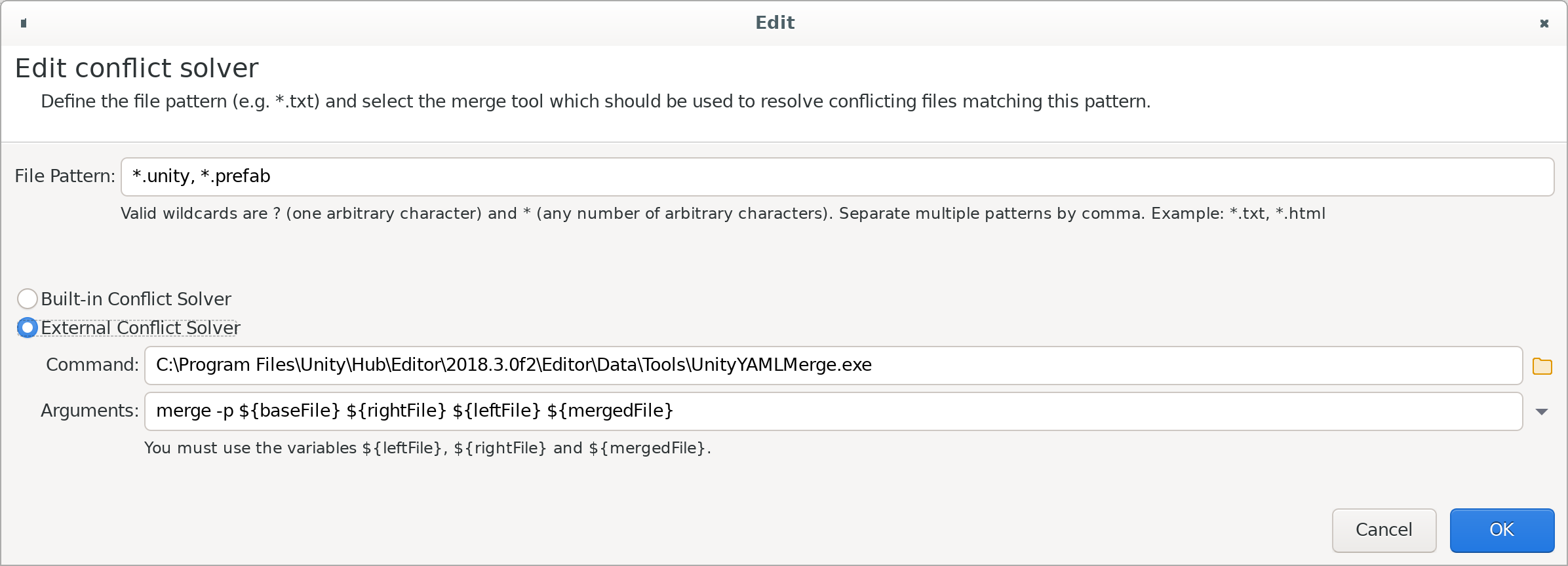
To configure the UnityYAMLMerge, use merge -p ${baseFile} ${rightFile} ${leftFile} ${mergedFile} as Arguments. An example configuration could look like:
Note, that a compatible 3-way merge tool has to be configured as “fallback” for the Unity merge tool in order to complete the merge if the automatic merging is not successful.